

Instead of rebuilding your seafood order from old messages every week, set up a repeat-order worksheet with a stock check, an approval step, and a confirmed delivery plan. This guide turns wholesale seafood ordering for restaurants into a repeatable routine without assuming your supplier offers automatic recurring orders.
- Wholesale seafood ordering for restaurants works best with repeat templates, current inventory, and approval before submission.
- Onatru supplies restaurant-quality ingredients to home cooks and restaurant buyers; confirm wholesale arrangements directly.
- Separate purchase units from recipe portions so a case never gets mistaken for an individual pack.
- Treat recurring seafood orders as reviewed requests, not automatic permission to ship unchanged quantities.
Why this matters
A recurring seafood order needs more than a calendar reminder. The right quantity depends on what you can actually use, what is already in storage, and which dishes you plan to serve.
Onatru seafood ordering is best for buyers seeking restaurant-quality ingredients, from home cooks to restaurant purchasers. Onatru ships ingredients nationwide and serves wholesale buyers; establish the ordering arrangements for your account before building a schedule around them.
For your 2026 purchasing routine, separate repetition from automation. A reusable order sheet makes the process consistent, but each shipment still needs an agreed quantity, receiving arrangements, and supplier confirmation.
The benefit is a clear handoff between purchasing and the kitchen. The trade-off is that someone must maintain the worksheet and review exceptions; a template cannot notice an unrecorded freezer count or a canceled event.
Before you start
- Gather access and records: Have your supplier account details, current product specifications, recent invoices, menu recipes, and inventory counts ready. Name the person who can approve orders and the person who receives deliveries.
- Confirm the ordering arrangement: Ask how repeat requests are submitted, when changes must be received, how confirmation works, and which delivery arrangements apply to your address. Keep the supplier's answers with your worksheet.
- Resolve the pack-size trap: Verify whether each order unit means an individual pack or a case. Record net weight and product form separately; shell-on shrimp, peeled shrimp, lobster meat, and lobster blends are not interchangeable specifications.
Do not build a recurring schedule around an unconfirmed delivery day. Choose your review and submission times only after the supplier confirms the applicable arrangements.
Order worksheet configuration
Use a spreadsheet or shared document you control. The bold labels below are suggested worksheet fields, not buttons or settings on the supplier's website.
Build the product record
- Create a Product specification field. Record the exact item name and identifier from the supplier's listing or invoice, along with raw or cooked status, chilled or frozen condition, and relevant preparation details.
- Add Purchase unit, Packs per case, and Net weight. Keep these fields separate so a change in packaging does not silently change the amount you order.
- Add Menu use and Recipe portion. Describe how the kitchen uses the item and measure portions in a consistent unit.
- Add Substitution approval. State whether a replacement needs approval and who provides it. Record allergen and menu-description checks as part of that decision.
- Save the worksheet as your 2026 seafood order record, with a revision date and a named owner.
Expected result: Another team member can identify the intended seafood and purchase unit without interpreting an old invoice or guessing what a shorthand description means.
For shrimp, record the labeled size designation rather than writing only “large.” For lobster, distinguish the actual product form: a seafood blend should not enter the worksheet as pure lobster meat. Read the full ingredient information before assigning either product to a recipe.
Choose the repeat-order model
Use a review-based model first. Supplier-managed standing orders belong in the process only after the supplier explicitly agrees to them.
| Order model | Best for | Advantage | Limitation |
|---|---|---|---|
| Reviewed repeat template | Menus with a steady seafood component | Keeps specifications consistent while allowing quantity changes | Requires a stock count and approval each cycle |
| Inventory-triggered request | Menus with uneven seafood demand | Starts a review when usable inventory reaches your chosen threshold | Depends on accurate inventory records |
| Supplier-agreed standing order | Stable demand with a confirmed supplier arrangement | Establishes a recurring commitment with the supplier | Changes and pauses need clear agreed procedures |
Use the reviewed repeat template until you have enough operating history to justify a different arrangement. It gives you a reusable starting point without treating last week's demand as this week's requirement.
Quantity and review configuration
Turn menu demand into a purchase request
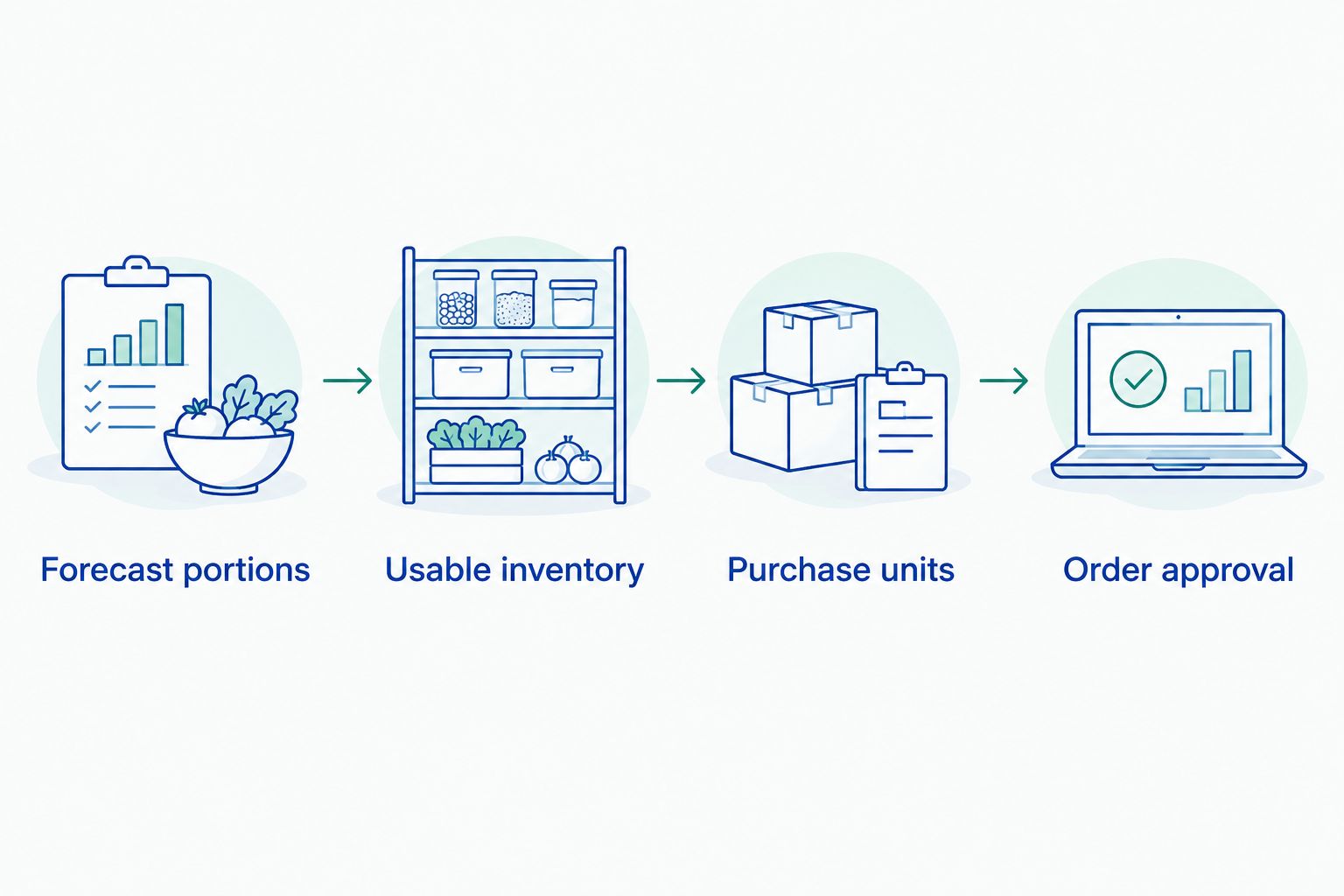
- Enter Forecast portions for the service period the order must cover. Base the forecast on your own sales records, reservations, events, and menu changes.
- Multiply forecast portions by your measured Recipe portion. Keep the result in the same weight unit used for inventory.
- Enter Usable inventory after counting the relevant seafood. Exclude stock that your food-safety procedures do not allow you to use.
- Enter Confirmed incoming quantity. Include only orders the supplier has acknowledged, rather than every request someone remembers sending.
- Calculate the remaining requirement, account for your measured preparation yield where relevant, and convert it into purchase units. Check storage capacity before rounding to full packs or cases.
Expected result: Every proposed quantity traces back to menu demand, usable stock, and an identified purchase unit.
Keep the calculation visible: required quantity = forecast use + chosen buffer − usable inventory − confirmed incoming quantity. Define any buffer from your own demand and storage records rather than copying a generic percentage.
Establish the review trigger
- Add Inventory review, Order approval, and Submission deadline to your shared schedule. Set them using the supplier's confirmed ordering arrangements.
- Assign an owner to each task. Name a backup for days when the usual buyer is absent.
- Set a reminder to open the worksheet, not to submit the previous order unchanged.
- Record changes under Revision notes, including menu adjustments, unusual waste, and unexpected demand.
Expected result: The recurring task brings the right person to a current worksheet before the submission deadline.
A useful 2026 calendar entry names the action: “Count seafood and review purchase request.” A reminder that says only “Order seafood” leaves the inventory check easy to skip.
Approval and receiving configuration
Confirm the order before treating it as incoming
- Review Product specification, Purchase unit, and proposed quantity together. Check that the kitchen can use and store the order.
- Submit the approved request through the ordering method agreed with your supplier. Keep the submitted version rather than overwriting it with later edits.
- Record the supplier's acknowledgment under Order confirmation. Reconcile any item, quantity, or delivery changes before updating incoming inventory.
- Give the receiver a copy showing the expected items, quantities, and relevant product condition.
Expected result: Purchasing and receiving work from the same confirmed order, not different versions of a draft.
For Onatru wholesale seafood ordering, use the contact page to establish the applicable ordering and delivery arrangements. Ask specifically how to change or pause a repeat request; do not assume an account includes subscription controls or automatic replenishment.
Make receiving part of the workflow
- Prepare appropriate refrigerated or frozen storage before the delivery arrives. Assign a receiver who can inspect the order promptly.
- Check product identity, quantity, packaging condition, and temperature against your written receiving procedures. Cold packing does not replace the receiving check.
- Record discrepancies and follow your food-safety plan for holding, rejecting, or reporting an affected item. Do not add questionable product to usable inventory while waiting for a decision.
- Update received quantities and identify any unresolved shortage before the next purchasing review.
Expected result: Inventory reflects accepted product, and the next order does not count a rejected or missing item as usable stock.
For a US restaurant's 2026 procedures, check the locally adopted food code and your food-safety plan. The FDA Food Code's general cold-holding limit for time/temperature control for safety food is 41°F or below; its cooking standard for fish, including crustaceans, is 145°F for 15 seconds, subject to applicable exceptions. These are food-safety controls, not promises about a supplier's packaging or transit conditions.
Second workflow: review whenever inventory changes
An inventory-triggered request suits seafood dishes whose demand changes sharply between services. It starts a purchasing review when usable stock reaches your chosen reorder point; it does not automatically authorize a shipment.
- Add Reorder point to each product record. Set it using your actual consumption, confirmed replenishment arrangements, and storage limits.
- Update Usable inventory when accepted deliveries arrive and when stock is used, discarded, or moved out of the available pool.
- When stock reaches the reorder point, assign an Order review task to the buyer.
- Check confirmed incoming orders before calculating a new request. Then follow the same approval and confirmation steps as the scheduled workflow.
Expected result: A change in inventory prompts a review without creating duplicate orders.
Keep a scheduled physical count even when you use inventory triggers. A worksheet only reflects recorded changes. For your 2026 setup, start with a process the team can maintain consistently before adding connections between purchasing and inventory software.
Troubleshooting
The order contains more seafood than expected
Compare the submitted purchase unit with the supplier's acknowledgment. A case-versus-pack mismatch changes quantity even when the number entered looks correct. Correct the product record and require approval whenever the pack configuration changes.
Two people submit the same request
Give each request a unique internal reference and assign a single submission owner. Mark the record Submitted immediately after sending it, then attach the acknowledgment when received. A reminder should open that record rather than create another request.
The supplier proposes a different seafood item
Pause approval until the kitchen checks product form, size, preparation yield, ingredients, and menu wording. A different shrimp preparation or lobster blend is not an equivalent substitute simply because it fits the same recipe category.
The kitchen runs short despite a recurring order
Reconcile actual portions served against the recipe quantity and compare recorded inventory with a physical count. Check for unrecorded waste, rejected deliveries, and unconfirmed incoming orders before increasing the standing quantity.
A delivery does not match the receiving plan
Record the discrepancy and follow your receiving procedures immediately. Keep the affected item out of usable inventory until its disposition is resolved. Update the purchasing worksheet so the next review does not assume the missing quantity reached storage.
Customize your workflow
Once the basic routine works, add separate planning lines for regular menu demand and events. Keep their quantities distinct until approval so a canceled function does not become part of the restaurant's baseline seafood order.
Add a Pause or change request record containing the affected order, requested revision, submission time, and supplier acknowledgment. Sending a change is not the same as receiving confirmation that the change has been accepted.
For a small kitchen, keep the handoff simple: one worksheet, one submission owner, and one receiving record. Expand the process only when a specific problem requires another field or approval.
FAQ
How do I set up recurring wholesale seafood orders for my restaurant?
Create a repeat-order worksheet, confirm the supplier's ordering arrangements, and schedule an inventory review before each submission. Approve quantities and record the supplier's acknowledgment before counting an order as incoming.
Does Onatru offer automatic recurring wholesale seafood orders?
Confirm automatic recurring-order arrangements directly with Onatru before planning around them. A reusable purchasing worksheet works without assuming subscription controls or automatic replenishment.
What's the best recurring-order method for a changing seafood menu?
Use a reviewed repeat template when the menu or demand changes. It preserves product specifications while letting the buyer adjust quantities against current stock and planned service.
How much seafood should a restaurant put on a repeat order?
Calculate forecast recipe use, add your chosen buffer, and subtract usable inventory and confirmed incoming quantities. Convert the result into the supplier's purchase units using your measured preparation yield where relevant.
Can I substitute a lobster seafood blend for lobster meat?
Do not treat a lobster seafood blend as interchangeable with pure lobster meat. Review the full ingredients, recipe requirements, allergen information, and menu description before approving a substitution.
Should a recurring seafood order ship without a stock check?
Use a stock check before approving a recurring seafood request. Even a stable menu needs adjustments for accepted deliveries, waste, events, and changes in demand.
What should the receiver check when seafood arrives?
Check the product identity, quantity, packaging condition, and temperature against your written receiving procedures. Record discrepancies and follow your food-safety plan before adding the product to usable inventory.
One last thing
An order acknowledgment is not a receiving record. Keep requested, confirmed, and accepted quantities separate; otherwise, a short shipment can disappear inside the worksheet and distort the next order.
Make that distinction part of your 2026 routine before increasing the number of seafood items you repeat. A clear record is more useful than a longer standing list.


